Stop Repeating Yourself: How To Create A Knowledge Base
Why Every Team Needs a Knowledge Base
Imagine this: your support team answers the same ten questions every single day. New hires spend their first week hunting through Slack threads and outdated Google Docs for basic process information. Critical knowledge lives in one person's head, and when they go on vacation, everything stalls. Sound familiar?
These aren't minor annoyances. Support teams spend roughly 40% of their time fielding repetitive questions that a well-structured self-service resource could handle instantly. That's nearly half your team's bandwidth consumed by work that doesn't need a human touch. Learning how to create a knowledge base solves this problem at the root.
What a Knowledge Base Actually Is
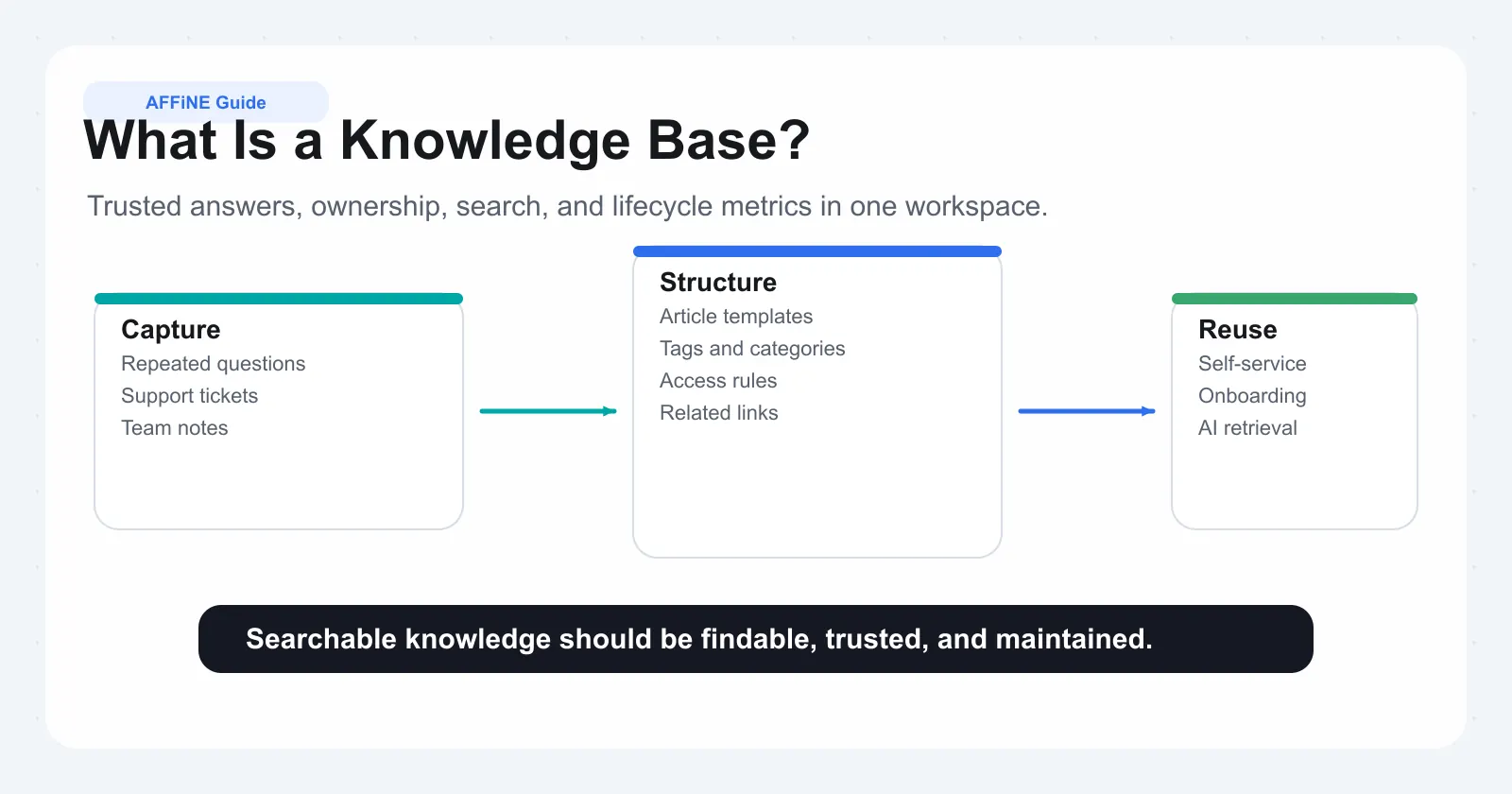
The simplest knowledgebase definition: a centralized, searchable collection of information organized so people can find answers on their own. Think of it as a single source of truth, structured by topic, maintained by designated owners, and designed for a specific audience.
Whether you spell it as knowledgebase or knowledge base, the concept stays the same. But it's worth distinguishing from tools that look similar on the surface. A shared drive is a dumping ground for files with no editorial structure. A wiki allows anyone to edit anything, which often leads to outdated, contradictory content with no clear ownership. A knowledge base, by contrast, has defined roles, quality controls, organized categories, and advanced search capabilities that wikis and folders simply lack.
In broader terms, the knowledge database definition encompasses any structured repository built for retrieval, but in practice, modern knowledge bases combine documentation, search, permissions, and analytics into one cohesive system.
Why Teams Invest in a Knowledge Base
The reasons go beyond reducing ticket volume, though that alone justifies the effort. A knowledge base delivers value across multiple dimensions:
• Self-service demand: Customers and employees increasingly prefer finding answers themselves rather than waiting for a response.
• Reduced support load: Every question answered by an article is a ticket your team never has to touch.
• Faster onboarding: New hires ramp up in days instead of weeks when essential information is organized and accessible.
• Institutional memory: When experienced team members leave, their knowledge stays behind.
Understanding why a knowledge base is important comes down to one principle: information should work for your team, not against it. Scattered documentation creates friction. A structured knowledge base eliminates it.
Most knowledge bases fail not from bad software choices but from skipping the planning steps that determine structure, ownership, and content priorities.
This guide walks you through the entire process, platform-agnostic and step-by-step, from auditing what you already know to optimizing your knowledge base long after launch. The first decision you'll need to make shapes everything that follows: who exactly is this knowledge base for?
Step 1: Define Your Knowledge Base Type and Goals
A knowledge base built for your engineering team looks nothing like one built for your customers. The audience you choose determines content tone, access controls, search behavior, and how you measure success. Getting this wrong means rebuilding later, so it's worth spending time here before writing a single article.
Internal vs External Knowledge Bases
An internal knowledge base is a centralized repository designed for employees and internal stakeholders. Think company policies, onboarding checklists, troubleshooting runbooks, and process documentation. Internal knowledge base examples include HR handbooks, engineering wikis with deployment procedures, and sales playbooks that help reps handle objections.
An external knowledge base, on the other hand, serves customers, clients, or the general public. It's your customer support knowledge base: FAQs, product guides, setup instructions, and troubleshooting tips that let users solve problems without filing a ticket. Since 69% of consumers prefer to find solutions independently, a well-built external knowledge base directly reduces support volume.
Many organizations need both. Your help desk knowledge base might power customer-facing self-service while a separate employee knowledge base handles internal operations. The key is recognizing that each type has fundamentally different requirements:
| Dimension | Internal Knowledge Base | External Knowledge Base |
|---|---|---|
| Primary Audience | Employees, internal teams | Customers, prospects, general public |
| Content Examples | Policies, SOPs, onboarding guides, technical runbooks | FAQs, product docs, setup guides, troubleshooting |
| Access Model | Restricted, role-based permissions | Public or login-gated |
| Success Metrics | Time-to-find, onboarding speed, internal ticket reduction | Ticket deflection rate, CSAT, self-service ratio |
| Typical Owners | HR, IT, Ops, department leads | Support, Product, Marketing |
Setting Measurable Goals for Your Knowledge Base
Goals shape structure. Without them, you'll build a content library with no way to know if it's working. Pick two or three specific outcomes before you write anything.
For a customer service knowledge base, a strong goal might be "reduce ticket volume by 30% within six months" or "achieve 90% helpfulness ratings on the top 20 articles." If you're figuring out how to create an internal knowledge base, your targets might focus on cutting onboarding time from two weeks to five days, or reducing repeated questions in Slack by half.
The pattern is simple: tie each goal to a number and a timeframe. Vague objectives like "improve knowledge sharing" give you nothing to measure against. Specific targets like "improve first-contact resolution by 15%" tell you exactly what content to prioritize and when to course-correct.
Identifying Your Core Audience
Your customer knowledge base and your employee knowledge base serve people with very different contexts, vocabulary, and patience levels. Mapping your audience personas before building content prevents a common mistake: writing at the wrong level.
Ask yourself these questions:
• Who will consume this content? (New hires, experienced staff, end-users, technical admins?)
• Who will contribute content? (Subject matter experts, support agents, product managers?)
• What language does this audience use when searching? (Internal jargon vs. plain customer language?)
• How much context can you assume they already have?
A knowledge base for a support team can assume familiarity with your product's backend. A customer-facing one cannot. These distinctions affect everything from article depth to category naming to the reading level you target. Get the audience right, and the taxonomy, tone, and templates fall into place naturally.
With your type, goals, and audience defined, you have a foundation. The next challenge is figuring out what knowledge already exists in your organization, where it lives, and what's missing entirely.
Step 2: Audit Your Existing Knowledge and Plan Content
Every organization already has a knowledge bank, even if it doesn't look like one. It's scattered across email threads, buried in Slack channels, locked inside support ticket histories, and stored in the heads of a few key people. Building a knowledge base without first understanding what already exists leads to duplicated effort, missed gaps, and articles that nobody needs.
The audit phase is where you take inventory. You figure out what's documented, what's outdated, what's missing, and what lives only as tribal knowledge. This step prevents the most common failure mode: spending weeks writing content that already exists somewhere else or that nobody actually needs.
Running a Knowledge Audit
Think of this as cleaning out a closet before buying new organizers. You need to see everything you have before deciding what stays, what gets updated, and what needs to be created from scratch.
Here's a practical method for how to build a knowledge base audit:
• List all information sources: Shared drives, wikis, Confluence pages, Notion docs, pinned Slack messages, email templates, support macros, onboarding decks, and recorded trainings. Cast a wide net.
• Identify subject matter experts: Who do people go to when they have questions about billing? Deployments? HR policies? These people hold undocumented knowledge that needs capturing.
• Catalog existing documents: For each piece of content you find, record what it covers, where it lives, who owns it, when it was last updated, and whether it's still accurate.
• Flag gaps: Compare what you've found against the questions your team actually gets asked. Where there's a frequent question with no documented answer, that's a gap.
A simple spreadsheet works well for tracking audit findings. Set up columns for topic, current location, owner, last updated date, accuracy status, and priority level. Research from APQC shows that organizations maintaining current content inventories spend 25% less time on audits than those starting from scratch. Even a basic tracker saves significant effort down the line.
Don't overlook your support ticket history. Analyze your last 100-200 tickets and look for patterns. The questions customers and employees ask repeatedly are your highest-value content opportunities. Those patterns tell you exactly what your knowledge library needs to cover first.
Prioritizing What to Document First
Trying to document everything at once is a guaranteed way to stall the project. Instead, rank topics using three criteria: how often the question gets asked, how much business impact the answer carries, and how time-sensitive the information is.
Start with the top 10-20 most-asked questions. These are your quick wins, the articles that deliver immediate value and prove the concept to stakeholders. Use this prioritization framework to sequence your content creation:
-
High-frequency support questions: The repetitive tickets and Slack messages that consume the most team bandwidth.
-
Onboarding essentials: Information every new hire or new customer needs in their first week.
-
Process documentation: Step-by-step workflows that multiple people need to follow consistently.
-
Troubleshooting guides: Solutions to known issues that currently require escalation or expert intervention.
-
Reference material: Policies, specifications, and lookup information people access periodically.
This order reflects diminishing urgency. High-frequency questions deliver the fastest ROI because each article immediately reduces repetitive work. Reference material, while valuable, can wait until the foundation is solid.
Creating a Realistic Project Timeline
Creating a knowledge base is a project, not a weekend task. But it doesn't need to take months either. A realistic timeline keeps momentum without burning out your contributors.
Here's a phase-based approach that works for most teams:
| Phase | Duration | Key Activities |
|---|---|---|
| Audit | 1-2 weeks | Inventory sources, identify SMEs, catalog content, flag gaps |
| Architecture | 1 week | Define categories, choose templates, set naming conventions |
| Initial Content | 2-4 weeks | Write top 15-20 articles, review, and publish |
| Soft Launch | 1 week | Release to a pilot group, gather feedback, fix issues |
| Iteration | Ongoing | Add articles based on demand, refine structure, measure results |
The audit and architecture phases are where most teams want to rush. Resist that urge. A week spent getting your structure right prevents months of reorganization later. Conversely, don't let the content creation phase stretch indefinitely. Set a target number of articles for launch (15-20 is a strong starting point) and ship. You can always expand based on real usage data.
With your audit complete and a prioritized content plan in hand, you'll know exactly what to write and in what order. The next piece of the puzzle is deciding how to organize all of it: the category structure, naming conventions, and article templates that make your knowledge base intuitive to navigate.
Step 3: Design Your Information Architecture
A knowledge base with great content but poor organization is like a library with no shelving system. People give up looking. The way you structure categories, name articles, and choose formats determines whether users find answers in seconds or abandon the search entirely. Good knowledge base design isn't about aesthetics. It's about reducing the cognitive effort required to locate information.
This step is where many teams stumble. They either create too many categories upfront (resulting in empty sections that look abandoned) or too few (forcing users to scroll through dozens of unrelated articles). The goal is a structure that feels intuitive today and scales gracefully as your content grows.
Designing Your Category Structure
Start with a top-down approach. Define 4-7 broad, top-level categories that encompass the full scope of your knowledge base. These should be broad enough that a user landing on your homepage immediately understands where to click, but specific enough to be meaningful. As KnowledgeOwl's categorization guide recommends, try to keep your total number of top-level categories to fewer than ten, with five being ideal for simplicity.
Only add subcategories when a parent category exceeds 8-10 articles. Premature subcategorization creates empty shells that confuse users and make your knowledge base look incomplete. And never nest deeper than three levels. If you find yourself creating a fourth tier, that's a signal your top-level structure needs rethinking.
For an internal knowledge base, a sample hierarchy might look like this:
• HR & People Ops — benefits, time off, performance reviews, workplace policies
• Engineering — deployment guides, architecture docs, coding standards, incident response
• Product — roadmap, feature specs, release notes, user research
• IT & Security — access requests, device setup, security protocols, approved tools
• Company Policies — travel, expenses, remote work, compliance
For a customer-facing knowledge base, categories typically mirror the user journey or product areas: Getting Started, Account Management, Billing, Integrations, and Troubleshooting. The key principle is the same in both cases: label categories with language your audience uses, not internal team names. "Financial Processes" is more findable than "Accounts Department Docs."
Writing Effective Titles and Metadata
Article titles are the single most important factor in how to organize a knowledge base for searchability. When someone types a question into your search bar, the title is what gets matched first. If your titles use internal jargon that your audience doesn't know, those articles might as well not exist.
Write titles that mirror the exact language people use when asking questions. Pull phrasing directly from support tickets, Slack messages, and search analytics. "How do I reset my password" outperforms "Authentication credential recovery procedure" every time, even if the second title is more technically precise.
Beyond titles, metadata makes your knowledge base articles discoverable through multiple paths. Consider these metadata fields for each article:
• Tags: 2-5 keywords that capture alternate ways someone might search for this topic
• Product area or feature: Links the article to a specific part of your product or organization
• Audience: Indicates whether the article targets beginners, advanced users, or admins
• Last reviewed date: Signals content freshness to both users and maintainers
• Related articles: Cross-links that help users explore connected topics
Tags deserve special attention. Use them to bridge the gap between how different people describe the same thing. An article about SSO configuration might be tagged with "single sign-on," "login," "SAML," and "authentication" so it surfaces regardless of which term a user searches.
Choosing Article Types and Templates
Not every piece of knowledge fits the same format. A step-by-step setup guide needs a different structure than a policy document or a conceptual overview. Defining standard article types with corresponding knowledge base templates gives your contributors a clear starting point and keeps your content consistent as multiple people write.
Four core formats cover the vast majority of knowledge base components:
| Article Type | When to Use It | Typical Structure | Example Title |
|---|---|---|---|
| How-to Guide | User needs to accomplish a specific task | Goal statement, prerequisites, numbered steps, expected outcome | How to Connect Your Slack Integration |
| Troubleshooting Article | User is experiencing a specific problem | Symptom description, possible causes, step-by-step fixes, escalation path | Fix: Email Notifications Not Sending |
| Reference Document | User needs to look up specifications, policies, or settings | Overview, detailed table or list, related links | Supported File Types and Size Limits |
| Conceptual Explainer | User needs to understand how something works before acting | Definition, how it works, use cases, next steps | Understanding Role-Based Permissions |
Each knowledge base article template serves a distinct purpose. How-to guides are your workhorses, covering the tasks people perform most often. Troubleshooting articles address pain points and reduce escalations. Reference docs serve as lookup resources people return to repeatedly. Conceptual explainers provide the "why" behind features or processes, helping users build mental models before diving into action.
When you're unsure which format fits, ask: "Is the reader trying to do something, fix something, look something up, or understand something?" The answer maps directly to one of these four types.
Using consistent knowledge base templates across your content does more than save writing time. It trains your audience to recognize patterns. Once someone reads two or three troubleshooting articles, they know exactly where to find the fix steps in the next one. That predictability reduces friction and builds trust in your knowledge base as a reliable resource.
With your architecture defined, categories named, and templates ready, you have the structural foundation. The next decision is choosing the software that brings this structure to life, which means evaluating platforms against the specific requirements your design has surfaced.
Step 4: Choose the Right Knowledge Base Software
Your information architecture tells you what to build. Your knowledge base software determines how easily you can build it, maintain it, and scale it over time. Picking the wrong knowledge base platform creates friction that compounds with every article you publish. Picking the right one makes the entire system feel effortless.
The mistake most teams make here is jumping straight to feature comparison charts without first understanding which criteria actually matter for their situation. A solo support team evaluating knowledge base tools has completely different priorities than a 200-person engineering org. Rather than handing you a ranked list, here's a framework for evaluating any knowledge base program against your specific needs.
Essential Features to Evaluate
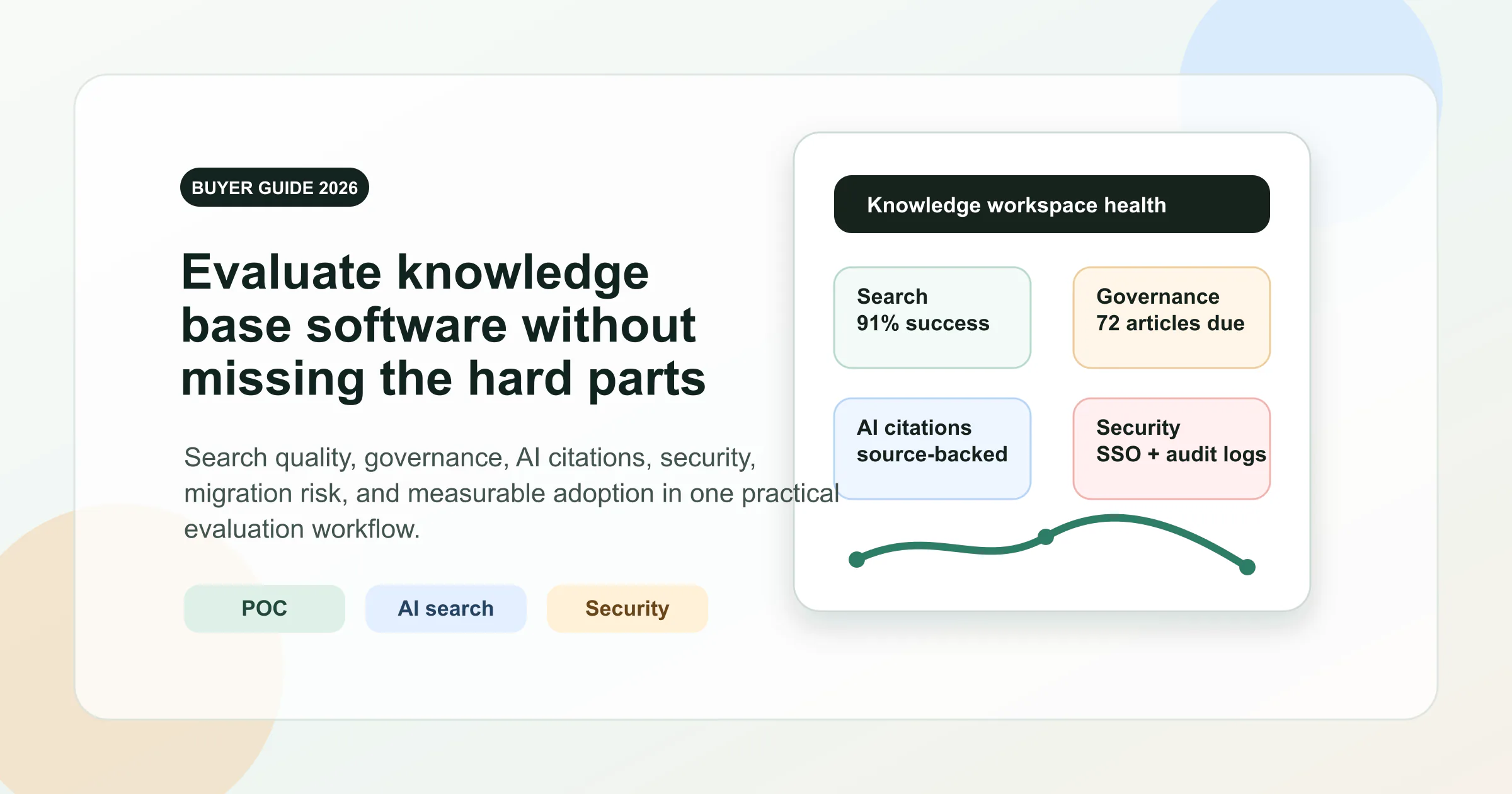
Every piece of knowledge based software shares a common set of capabilities, but the quality of implementation varies wildly. When you're testing platforms, focus your evaluation on these seven criteria:
| Criteria Category | What to Look For | Why It Matters |
|---|---|---|
| All-in-one workspace | Docs, databases, whiteboards, and AI in a single system with local-first architecture (e.g., AFFiNE) | Reduces tool sprawl and keeps knowledge connected without vendor lock-in |
| Search quality | Semantic search, typo tolerance, search analytics showing failed queries | Poor search means users can't find answers, which defeats the entire purpose |
| Editor experience | WYSIWYG with markdown support, easy media embedding, content reuse via snippets or templates | If authors hate the editor, content goes stale because nobody wants to update it |
| Permissions and access control | Role-based access, mixed public/private content, SSO integration | Critical for teams managing both internal and external knowledge in one system |
| Integrations | Connections to help desks, chat platforms, SSO providers, and APIs for custom workflows | Your knowledge base must fit into existing workflows, not sit beside them |
| Analytics | Article views, search terms with no results, reader feedback, content gap identification | You can't improve what you don't measure, and vanity metrics won't help |
| AI capabilities | Writing assistance, AI-powered search, source-cited answers, hallucination controls | AI that makes up answers is worse than no AI at all; look for transparency and citations |
| Scalability | Performance with hundreds of articles, flexible category structures, multi-audience support | A tool that works for 20 articles but breaks at 200 forces a painful migration later |
During your evaluation, don't just watch demos. Actually create a few real articles from your existing documentation during free trials. KnowledgeOwl's buying guide recommends inviting team members to test the authoring experience alongside you, since author satisfaction is one of the strongest predictors of long-term adoption. A platform that feels clunky to write in will produce an outdated knowledge base within months.
Free vs Paid Options
Budget matters, but the cheapest option often costs more in lost productivity and eventual migration. Here's how to think about the tradeoffs when evaluating free knowledge base software against paid alternatives.
Open-source tools offer flexibility without vendor lock-in. AFFiNE, for example, provides a local-first, privacy-focused workspace that combines docs, whiteboards, databases, and AI in one open-source system. For teams building an internal knowledge base from scratch, this all-in-one approach means you're not stitching together three or four separate tools. You own your data, you control your infrastructure, and you can customize the platform to match your exact workflow.
The tradeoff with open-source internal knowledge base software is operational responsibility. You handle hosting, security patches, and upgrades. For teams with technical resources, that's a fair exchange for complete control. For teams without dedicated DevOps capacity, a managed SaaS platform removes that maintenance burden at the cost of a monthly subscription and some flexibility.
Pros of Free/Open-Source Knowledge Base Software
• Full data ownership and privacy control
• No recurring subscription fees
• Deep customization potential
• No vendor lock-in or forced migrations
Pros of Paid SaaS Knowledge Base Platforms
• Ready to use immediately with minimal setup
• Vendor handles security, uptime, and updates
• Dedicated support with SLAs
• Built-in compliance certifications (SOC 2, GDPR)
Neither option is universally better. The best internal knowledge base software for your team depends on your technical capacity, data sensitivity requirements, and how much operational overhead you're willing to absorb.
Making Your Final Decision
After narrowing your options to two or three platforms, run each through this decision-making checklist:
• Does my team enjoy using it? Test with real content during a trial, not generic placeholder articles.
• Can our audience find answers quickly? Run realistic search queries your users would actually type.
• Does it support our architecture? Verify that your planned category structure, templates, and permissions model work within the platform's constraints.
• What's the total cost of ownership? Factor in implementation time, training, ongoing maintenance, and the cost of switching later if the tool doesn't scale.
• Is the vendor a long-term partner? Check product development activity, support quality, and data export options.
One practical tip: create a simple scoring spreadsheet. List your must-have features as pass/fail dealbreakers, your important features on a 1-5 scale, and your nice-to-haves on a 1-3 scale. This prevents a flashy demo from overriding your actual requirements.
For readers ready to compare specific platforms side by side, AFFiNE's knowledge base software comparison guide provides a detailed breakdown of how different tools stack up across these evaluation criteria.
Choosing your knowledge base platform is a significant decision, but it's not the final one. The software is just the container. What goes inside it, how your articles are written, structured, and maintained, is what determines whether people actually use your knowledge base or ignore it entirely.
Step 5: Write and Format Your Knowledge Base Articles
Software chosen, architecture defined, categories ready. The container exists. But a knowledge base article is only as useful as the clarity of its writing and the consistency of its structure. This is where most teams lose momentum: they know what to document but struggle with how to write a knowledge base article that people actually read and trust.
The difference between a knowledge base that gets used daily and one that collects dust comes down to three things: article structure, writing style, and a repeatable workflow that keeps quality high without creating bottlenecks.
Structuring a Knowledge Base Article
What is a knowledge base article at its core? It's a self-contained answer to a specific question, structured so readers find what they need without reading the entire page. Every kb article should follow a predictable format that trains users to locate information quickly.
Here's a universal template that works across article types:
• Title: Mirrors the exact language your audience uses when searching. Pull phrasing from real support tickets, not internal terminology.
• Summary/TLDR: One to two sentences that answer the core question immediately. Readers who need nothing else can stop here.
• Prerequisites: What the reader needs before starting (permissions, tools, prior knowledge). Skip this section if none exist.
• Step-by-step body: The detailed answer, broken into scannable sections with headings, numbered steps, or short paragraphs.
• Related articles: Links to connected topics that anticipate the reader's next question.
This structure follows the inverted pyramid approach from journalism: lead with the most important information, then layer in supporting details. The broadest, most critical fact sits at the top. Smaller details and edge cases follow below. Readers who only scan the first paragraph still walk away with the answer. Those who need depth can keep reading.
The inverted pyramid works especially well for knowledge articles because it supports every type of reader. Someone in a rush gets the answer in seconds. Someone troubleshooting a complex issue gets the full context further down. Either way, the article delivers value immediately rather than burying the answer beneath background information.
Writing Style Guidelines for Clarity
When you look at strong knowledge base article examples, you'll notice they share a common trait: they sound like a helpful colleague explaining something, not a technical manual written by committee. Achieving that tone requires a few deliberate constraints.
Every article should answer one specific question completely. If you find yourself covering two distinct topics, split it into two articles.
Keep sentences under 20 words. Keep paragraphs to 2-4 sentences. These aren't arbitrary limits. Research on formatting and visual clarity shows that readers skim documents before committing to read them. Short paragraphs, bolded keywords, and bulleted lists create visual entry points that draw the eye and help readers locate relevant information fast.
A few practical guidelines to enforce across all kb articles:
• Write at your audience's reading level, not your experts'. If your customers say "can't log in," don't title the article "authentication failure resolution."
• Use visuals deliberately. Screenshots, diagrams, and short videos reduce ambiguity in ways text alone cannot. But only include them when they clarify a step, not as decoration.
• Be conversational but precise. Contractions are fine. Humor is fine in moderation. Vagueness is not. Every instruction should be specific enough that two people following it reach the same outcome.
• Format for scanning. Use headings, numbered steps, bold key terms, and whitespace generously. A wall of text signals "this will take effort" and drives readers away.
Consistency matters more than perfection. When every knowledge article follows the same formatting conventions, readers build familiarity. They know where to look for prerequisites, where the steps begin, and where to find related links. That predictability reduces friction across your entire knowledge base.
Building a Content Creation Workflow
Knowing how to create a knowledge base article is one thing. Producing dozens of them at consistent quality without burning out your team is another. You need a lightweight workflow with clear roles and minimal bottlenecks.
Three roles keep the system running:
• Subject matter expert (SME): Drafts the content. They have the knowledge but don't need to be polished writers.
• Editor: Reviews for clarity, consistency, and audience-appropriate language. Catches jargon, fills gaps, and ensures the article follows your templates.
• Owner: Maintains the article long-term. Responsible for updates when processes change and for scheduled reviews.
These roles can overlap. On a small team, one person might draft and own. On a larger team, you might have dedicated editors reviewing all content before publication. The key is that every article has a named owner, because unowned content decays. Without someone accountable for accuracy, articles go stale and erode trust in the entire system.
Here's the approval process that balances quality with speed:
-
Draft: SME writes the article using the appropriate template. Focus on accuracy and completeness over polish.
-
Peer review: Editor checks clarity, formatting, and tone. A second SME verifies technical accuracy if the topic is complex.
-
Publish: Article goes live after review approval. Don't wait for perfection. A good article published today beats a perfect one published never.
-
Schedule review date: Set a review reminder at publish time. High-traffic articles get quarterly reviews. Reference docs get biannual checks.
This workflow prevents two failure modes. Without peer review, inaccurate or confusing content reaches users. Without scheduled review dates, published articles quietly become outdated and misleading.
To maintain quality at scale, set a review cadence based on content type and traffic. Articles tied to frequently changing features need monthly checks. Stable policy documents might only need annual reviews. Track review status in a simple spreadsheet or database so nothing falls through the cracks.
The real test of your content workflow isn't the first 20 articles. It's article 200. If your process makes contributing feel like a burden, people stop writing. Keep the friction low: clear templates, fast reviews, and visible impact. When contributors see their articles deflecting tickets or helping new hires ramp up faster, writing becomes self-reinforcing rather than a chore.
Great articles and a solid workflow get you to launch. But publishing content is only half the challenge. Getting people to actually use your knowledge base, and keep using it, requires a deliberate adoption strategy that meets users where they already work.
Step 6: Launch Your Knowledge Base and Drive Adoption
You've built the structure, written the articles, and chosen the platform. The temptation now is to send a company-wide email announcing the new knowledge base and hope everyone starts using it. Resist that urge. A big-bang launch overwhelms people, generates a flood of feedback you can't act on quickly, and often results in a tool that feels half-baked to first-time visitors. The best knowledge base best practices for launch all share one trait: they start small and expand based on real feedback.
Planning a Soft Launch
Pick one team or department as your pilot group. Ideally, choose a team that already feels the pain of scattered documentation, like your support team or a recently onboarded cohort. Give them early access, walk them through the structure, and ask them to use the knowledge base for one week as their first stop for answers.
During this pilot phase, you're testing three things: Can people find what they need? Is the content accurate and complete? Does the category structure make sense to someone who didn't design it? Gather feedback through a short survey or a dedicated Slack channel. Iterate on structure and content before expanding to the next group.
McKinsey research suggests that when people are invested in a change, it is 30% more likely to stick long-term. A pilot group that helps shape the knowledge base becomes your first wave of advocates, not just users.
Driving Adoption Across Your Team
Adoption doesn't happen because you built something useful. It happens because you embedded that useful thing into the places people already work. When figuring out how to create a knowledge base for employees that actually gets used, the key is reducing the distance between the question and the answer to zero clicks.
Specific tactics that work when applying best practices for knowledge base setup in customer support and internal teams alike:
• Link from support tickets: When agents resolve a ticket, they paste the relevant knowledge base article into the reply. This trains customers to check the knowledge base first next time.
• Embed in onboarding checklists: New hires complete tasks that require reading specific articles. This is how a knowledge base helps remote employees get started without relying on synchronous hand-holding from busy teammates.
• Reference in Slack and chat: Instead of answering a repeated question directly, reply with a link to the article. This builds the habit without being dismissive.
• Identify internal champions: Find the people who naturally share knowledge already. Give them early access, ask for their input, and let them evangelize organically. As one enterprise adoption study noted, champions emerge because they solved a problem that mattered to them and want to help others do the same.
• Show time savings: Address resistance by making the ROI visible. Track how many tickets an article deflects or how much faster onboarding becomes, then share those numbers with the team.
The pattern here is integration, not announcement. Every time someone encounters the knowledge base inside a workflow they already follow, adoption reinforces itself.
Building a Knowledge-Sharing Culture
The hardest part of creating a help desk knowledge base or an internal one isn't the initial content. It's getting people to keep contributing after launch. If writing articles feels like extra work piled on top of existing responsibilities, contributions dry up within weeks.
The fix is making knowledge creation invisible within existing processes rather than a separate task. Here's how:
• Make it part of "done": When a project ships or a new process launches, the documentation article is a deliverable, not an afterthought. No article, no close.
• Celebrate contributors publicly: Highlight people who write or update articles in team standups, newsletters, or recognition channels. Research on knowledge sharing consistently shows that public recognition reinforces participation more effectively than mandates.
• Reduce friction relentlessly: Templates, clear guidelines, and fast review cycles mean a contributor can go from draft to published in under an hour. The longer the process takes, the fewer people will bother.
• Let support agents author directly: The people answering questions every day know exactly what needs documenting. Give them permission and a template, and you'll build a knowledge base that reflects real user needs.
Culture change doesn't happen overnight. But when people see their contributions saving colleagues time, when a new hire thanks them for an article that unblocked their first week, the motivation becomes self-sustaining. You're not asking people to do more work. You're asking them to do the same work once instead of ten times.
Launching well and driving adoption gets your knowledge base into daily use. Keeping it there, months and years later, requires a different discipline entirely: ongoing measurement, governance, and deliberate optimization based on how people actually interact with your content.
Step 7: Maintain, Measure, and Optimize Over Time
A knowledge base that's accurate on launch day but outdated six months later does more harm than good. Users who encounter stale information lose trust in the entire system, and they stop checking it altogether. Effective knowledge base management isn't a one-time project. It's an ongoing discipline that keeps your content reliable, relevant, and aligned with how your organization actually operates today.
This is where most teams drop the ball. They invest heavily in building and launching, then treat the knowledge base as "done." The reality? Your products change, your processes evolve, and your users' questions shift. Without a governance system that accounts for this, entropy wins every time.
Setting Up a Content Governance Framework
A content governance framework defines who maintains what, how often content gets reviewed, and what triggers an update outside the regular cycle. Think of it as the operational rulebook that prevents your knowledge management base from decaying into a graveyard of outdated articles.
According to Heretto's research on content governance, organizations without clear governance rules see their content management systems turn into "dumping grounds" where valuable assets become impossible to find or reuse. The fix is straightforward: establish rules before the chaos starts.
Here's a governance checklist to implement alongside your knowledge base management system:
• Review cadences: High-traffic articles get quarterly reviews. Reference docs and stable policies get biannual checks. Set calendar reminders at publish time so nothing slips.
• Ownership assignment: Every article has a named owner responsible for accuracy. Unowned content decays fastest because nobody feels accountable for it.
• Update triggers: Don't wait for scheduled reviews when circumstances change. Product releases, process changes, and repeated support questions about an existing article all signal an immediate update is needed.
• Retirement policies: Outdated content that no longer applies should be archived or deleted, not left visible. A clear retirement process prevents users from following instructions that no longer work.
• Version tracking: Log what changed, when, and why. This creates an audit trail and helps new owners understand an article's history.
Effective knowledgebase management doesn't require heavy process. A lightweight spreadsheet tracking article title, owner, last reviewed date, next review date, and status (current, needs update, retired) gives you visibility into your entire content lifecycle. The goal is making maintenance predictable rather than reactive.
Using Analytics to Identify Gaps
Your knowledge base generates signals every day about what's working and what isn't. The question is whether you're listening. Analytics transform knowledge base solutions from static document repositories into adaptive systems that improve based on real user behavior.
Four metrics matter most, according to Help Scout's analysis of knowledge base performance:
• Search queries with no results: These are direct requests from users that your knowledge base can't answer. Each failed search is a content gap waiting to be filled. Track the phrases people type, not just the count.
• Articles with high bounce rates: When someone lands on an article and immediately leaves without engaging further, the content likely didn't answer their question. Either the title is misleading or the article needs rewriting.
• Most-viewed articles: Your top 10 articles by traffic deserve the most attention. Keep them impeccably accurate and up to date. Consider whether high-traffic articles should be broken into smaller, more focused pieces.
• Feedback scores: If your platform includes "Was this helpful?" ratings, track average scores over time. A declining score on a specific article signals that something changed, either in the product or in user expectations.
These signals create a feedback loop. Failed searches tell you what to write next. Bounce rates tell you what to rewrite. High-traffic articles tell you where to focus quality efforts. Feedback scores tell you whether your changes are working. Together, they answer the question every team asks: how do we know if our knowledge base is actually helping?
For teams wondering how to integrate knowledge base with helpdesk ticketing system analytics, the approach is similar. Track which articles agents share most frequently, which tickets still get filed despite an existing article, and which articles correlate with first-contact resolution. These data points reveal whether your content is reaching users at the right moment or sitting unused.
Scaling Your Knowledge Base Over Time
Not every team needs an advanced knowledge base on day one. Growth should be intentional, driven by demand signals rather than ambition. A simple maturity model helps you understand where you are and what to invest in next, following knowledge base automation best practices at each stage:
| Maturity Level | Characteristics | Focus Areas |
|---|---|---|
| Basic | 15-30 core articles, single owner, manual updates, basic search | Cover the top questions, establish templates, build the writing habit |
| Intermediate | Full taxonomy, multiple contributors, analytics tracking, scheduled reviews | Expand coverage based on data, assign distributed ownership, refine categories |
| Advanced | AI-assisted search, automated freshness alerts, integrated with support workflows, cross-linked content | Predictive gap identification, self-service deflection optimization, continuous improvement loops |
The Knowledge Ops Maturity Model from ScreenSteps reinforces this progression: organizations move from tribal knowledge (undocumented, person-dependent) through documented knowledge (exists but underused) to guided knowledge (actively integrated into daily workflows). Each stage builds on the previous one, and trying to skip ahead usually means backtracking later.
As you scale from basic to advanced, your tooling needs evolve too. Tools like AFFiNE support this growth with built-in databases for tracking article status alongside AI features that surface connections between documents. For teams moving from a handful of articles to an interconnected knowledge system, having docs, databases, and AI in one workspace means you don't outgrow your platform at each maturity stage.
The key insight: don't over-invest in advanced capabilities before your fundamentals are solid. A team with 20 well-maintained articles and clear ownership outperforms a team with 200 articles and no governance every time. Scale your process first, then scale your content, then scale your automation.
Even with strong governance and analytics in place, knowledge bases still fail in predictable ways. Understanding the most common failure modes, and their fixes, helps you avoid the traps that derail teams who've done everything else right.
Common Mistakes That Kill Knowledge Bases and How to Avoid Them
You've followed the steps: defined your goals, audited your content, designed your architecture, chosen your platform, written your articles, launched to a pilot group, and set up governance. And yet, knowledge bases still fail at an alarming rate. Research shows that 70-73% of knowledge management initiatives fail to meet their stated objectives. The good news? The failure modes are predictable, which means they're preventable. Here are the three most common killers and how to sidestep each one.
Starting Too Big Instead of Too Small
The most natural instinct when learning how to create knowledge base systems is to document everything. Every process, every edge case, every policy. Teams set ambitious goals like "500 articles by end of quarter" and burn out their contributors within weeks. Half-finished drafts pile up, categories sit empty, and the whole project quietly stalls because the scope felt insurmountable.
The fix is counterintuitive: start smaller than feels comfortable. Launch with 15-20 high-impact articles that answer your most frequently asked questions. Those articles alone will deflect tickets, prove value to stakeholders, and generate the momentum you need to keep going. Expand based on demand signals, not ambition. When users search for something that doesn't exist, that's your cue to write the next article. When support agents keep answering the same new question, that's your next priority. Let real usage data drive growth rather than a theoretical content plan nobody can execute.
Neglecting Maintenance After Launch
Outdated content erodes trust faster than no content at all. When someone follows a guide that references a button that no longer exists or a process that changed six months ago, they don't just lose confidence in that one article. They stop trusting the entire knowledge base. Studies indicate that 67% of users avoid knowledge sources permanently after encountering incorrect information even once.
The fix is simple but requires discipline: assign an owner and schedule a review date before you publish any article. Not after. Not "when we get around to it." At the moment of publication, every article should have a named person accountable for its accuracy and a calendar reminder for its next review. High-traffic articles get quarterly checks. Stable reference docs get biannual reviews. This single habit, baked into your workflow from day one, prevents the slow decay that turns a good knowledge base into a liability.
Ignoring How People Actually Search
Imagine you have a perfectly written article titled "Authentication Credential Recovery Procedure." Meanwhile, your users are typing "I can't log in" into the search bar and getting zero results. This mismatch between expert terminology and user language is one of the most common reasons knowledge base examples fail in practice. As KnowledgeOwl's research on semantic search illustrates, traditional keyword search only matches exact words. If your titles don't use the language your audience speaks, your content might as well not exist.
The fix: mine your actual support tickets, Slack questions, and search analytics for the exact phrases people use. Write titles and tags in that language, not your internal jargon. "How do I reset my password" will always outperform "credential management workflow" in search results. Review your failed search queries monthly and either create new articles or add tags to existing ones so those queries start returning results.
The Top 5 Knowledge Base Failure Modes at a Glance
Every best knowledge base example avoids these traps. Here they are with one-line fixes:
-
Scope overload: Start with 15-20 articles and expand based on demand, not ambition.
-
Content decay: Assign owners and review dates at publish time, not after things break.
-
Terminology mismatch: Write titles using your users' language, pulled from real tickets and search logs.
-
No feedback loop: Track failed searches, bounce rates, and helpfulness scores to guide what you write and rewrite next.
-
Single point of failure: Distribute ownership across multiple contributors so the knowledge base doesn't stall when one person leaves or gets busy.
Here's the encouraging truth: a good knowledge base doesn't need to be perfect at launch. It needs to be accurate, findable, and maintained. Imperfect but shipped beats perfect but stuck in planning indefinitely. The steps in this guide give you a repeatable framework for how to make a knowledge base that works, regardless of whether your team is five people or five hundred, whether you're using a free open-source tool or an enterprise platform.
Start small. Ship early. Measure what matters. Fix what's broken. Expand where demand pulls you. A knowledge base is a living system, and the teams that treat it as one are the teams that stop repeating themselves for good.
Frequently Asked Questions About Creating a Knowledge Base
1. What is a knowledge base and how is it different from a wiki?
A knowledge base is a centralized, searchable collection of information organized so people can find answers independently. Unlike a wiki where anyone can edit anything freely, a knowledge base has defined roles, quality controls, organized categories, editorial ownership, and advanced search capabilities. Wikis often lead to outdated or contradictory content because there is no clear accountability, while a knowledge base enforces structured governance with assigned owners and scheduled review cycles to maintain accuracy over time.
2. How long does it take to build a knowledge base from scratch?
A realistic timeline for building a knowledge base spans roughly 5 to 8 weeks before soft launch. This breaks down into an audit phase of 1 to 2 weeks for inventorying existing content, an architecture phase of about 1 week for designing categories and templates, an initial content creation phase of 2 to 4 weeks for writing your first 15 to 20 high-impact articles, and a soft launch week for gathering pilot group feedback. After launch, iteration and expansion become ongoing activities driven by user demand and analytics data rather than a fixed deadline.
3. What software should I use to create a knowledge base?
The right software depends on your team size, technical capacity, and data sensitivity requirements. Evaluate platforms across seven criteria: search quality, editor experience, permissions, integrations, analytics, AI capabilities, and scalability. Open-source tools like AFFiNE offer a local-first, privacy-focused workspace combining docs, whiteboards, databases, and AI without vendor lock-in, making them ideal for teams that want full data ownership. Paid SaaS platforms trade customization for managed hosting and faster setup. Test with real content during free trials rather than relying on demos alone.
4. How many articles should a knowledge base have at launch?
Start with 15 to 20 high-impact articles that address your most frequently asked questions. This focused approach prevents contributor burnout and delivers immediate value by deflecting repetitive tickets from day one. Trying to document everything at once is the most common reason knowledge base projects stall. After launch, expand based on demand signals such as failed search queries, recurring support tickets, and user feedback rather than arbitrary content targets. Let real usage data guide which articles to write next.
5. How do I keep a knowledge base from becoming outdated?
Assign a named owner and schedule a review date at the moment each article is published, not after problems surface. High-traffic articles should receive quarterly reviews while stable reference documents need biannual checks. Set up update triggers for product releases, process changes, or repeated support questions about an existing article. Track article status in a simple spreadsheet with columns for owner, last reviewed date, and next review date. Retire or archive content that no longer applies rather than leaving it visible, since outdated information erodes user trust faster than having no content at all.