Free Cornell Notes Template 2026: Word, Docs & AFFiNE
Updated June 26, 2026 with first-party images, clearer template selection guidance, and source-backed study advice.
A Cornell notes template is a page layout for active note-taking: a cue column for questions, a main notes area for facts and examples, and a summary section for recall. The format helps students turn lectures, readings, and meetings into reviewable study material instead of a page of disconnected transcription.
The Cornell Notes System was developed at Cornell by Walter Pauk and is still taught by the Cornell University Learning Strategies Center. The method pairs well with evidence-backed learning practices: Dunlosky et al. found practice testing and distributed practice to have high utility across many learning conditions, while Mueller and Oppenheimer's 2014 study found that laptop note takers were more likely to transcribe verbatim and performed worse on conceptual questions than longhand note takers.
This guide helps you choose between Microsoft Word, Google Docs, OneNote, and AFFiNE's Cornell Notes Template, then shows a practical 24-hour workflow for using the template well.
Quick Comparison: Word vs Google Docs vs OneNote vs AFFiNE
| Template option | Best for | Setup time | Collaboration | Offline use | Main tradeoff |
|---|---|---|---|---|---|
| Microsoft Word | Printed worksheets and class handouts | 5-10 minutes | Limited unless saved in OneDrive | Strong on desktop | Manual table setup |
| Google Docs | Group study and shared lecture notes | 5-10 minutes | Strong | Limited without offline setup | Layout can shift on mobile |
| OneNote | Tablet handwriting and notebooks | 10-15 minutes | Good in Microsoft accounts | Strong | No native Cornell template |
| AFFiNE | Digital study systems with docs, whiteboards, and links | 1 click | Strong | Local-first workflow | Best when you want a full workspace |
What a Cornell Notes Template Includes
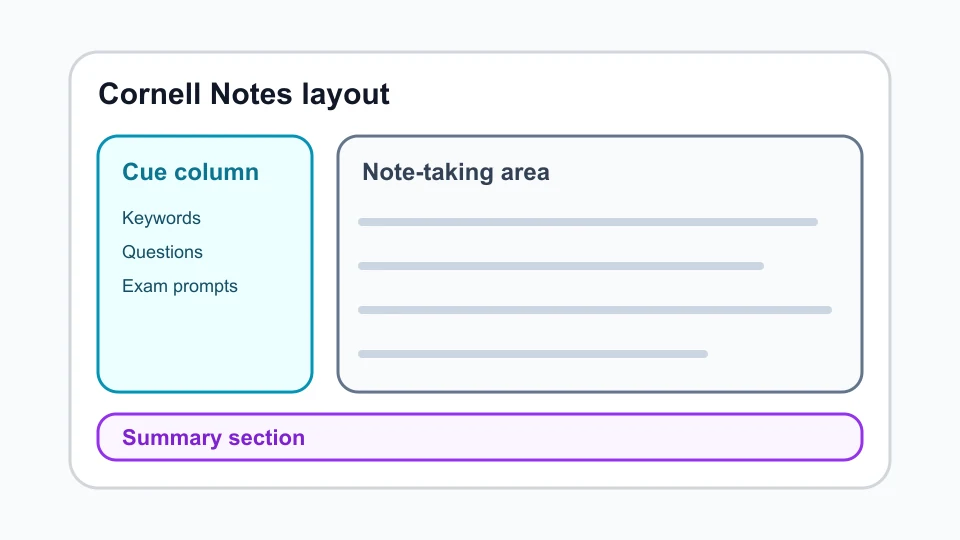
A complete Cornell notes page has three working areas:
- Cue column: Add keywords, exam prompts, vocabulary, formulas, or questions after the lecture.
- Note-taking area: Capture the main idea, supporting examples, diagrams, dates, definitions, and steps while learning.
- Summary section: Write a 2-4 sentence explanation in your own words, ideally the same day.
The layout matters because each section has a different cognitive job. The notes area captures information, the cue column converts it into retrieval prompts, and the summary section forces synthesis. If you skip the cue and summary steps, you are mostly using a divided page, not the Cornell method.
The 5R Method Behind Cornell Notes
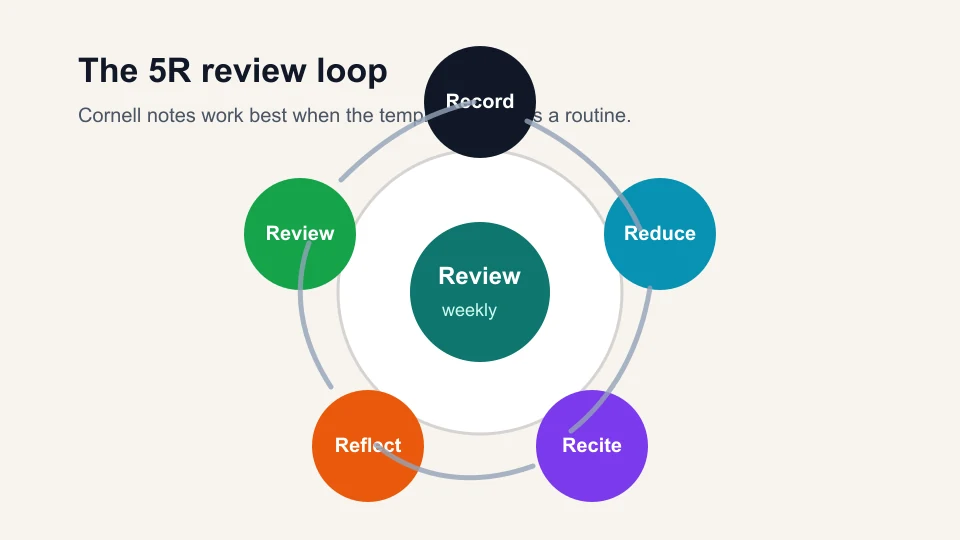
Walter Pauk's Cornell workflow is often taught as the 5R method:
- Record: During class or reading, write down main ideas and useful examples in the notes area.
- Reduce: Soon afterward, turn those notes into short cues, questions, or keywords.
- Recite: Cover the notes area and answer from the cue column alone.
- Reflect: Connect the material to prior knowledge, assignments, or likely exam questions.
- Review: Revisit the page on a spaced schedule instead of rereading it once before a test.
This is where the template becomes more than formatting. The Dunlosky et al. learning-techniques review rated practice testing and distributed practice as high-utility techniques. Cornell notes give you a built-in place to do both: cues become practice questions, and summaries make each later review faster.
Microsoft Word Cornell Notes Template
Use Word when you need a printable Cornell notes template, a PDF handout, or a simple file that works in a school LMS. The fastest setup is a two-column table for cues and notes, followed by a full-width summary row at the bottom.
Recommended Word setup:
- Create a one-page table with two columns and two rows.
- Make the left cue column about one-third of the page width.
- Merge the bottom row into one full-width summary section.
- Save the page as a reusable .dotx template or export it as PDF for printing.
Word is strongest for fixed-page notes and teacher-distributed worksheets. It is weaker for ongoing review systems because linking pages, embedding media, and searching across multiple notebooks take more manual work.
Google Docs Cornell Notes Template
Google Docs works well for shared study notes because everyone can edit the same document, comment on unclear points, and see revision history. It is a good fit for group lecture notes, tutoring sessions, and classes where students need to submit notes online.
The main risk is layout drift. Tables that look clean on desktop can become cramped on small screens. Keep the cue column narrow, avoid oversized images inside the table, and use headings above each lecture page so long documents remain scannable.
Use Google Docs if your priority is collaboration. Use AFFiNE or OneNote if your priority is a long-term personal study system with visual notes, backlinks, and offline access.
OneNote Cornell Notes Template
OneNote does not always ship with a built-in Cornell template, but it is easy to create one. Draw a vertical line for cues, keep the larger right side for notes, and add a summary block at the bottom. On an iPad, Surface, or other tablet, OneNote is especially useful for handwritten formulas, diagrams, and annotated slides.
Best use cases for OneNote:
- Math and science classes where handwriting and sketches matter.
- Courses where lecture slides need handwritten annotations.
- Students already using a Microsoft 365 notebook structure.
If you use OneNote, turn your cue column into questions after class. Without that step, handwritten pages can become visually rich but hard to test yourself from.
AFFiNE Cornell Notes Template for Digital Study Systems
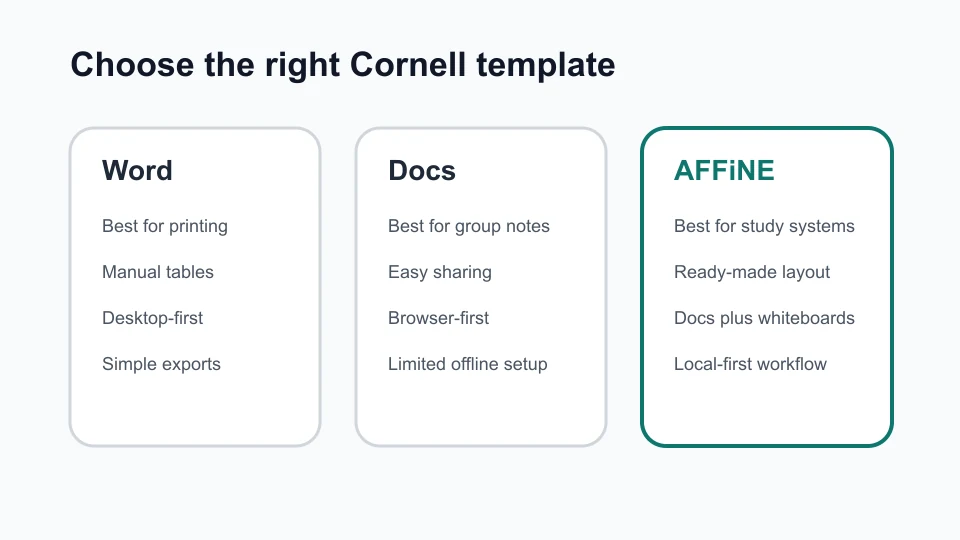
The AFFiNE Cornell Notes Template is the best choice when your notes need to become a living study workspace. You can keep the classic cues, notes, and summary structure while linking related pages, embedding media, switching into whiteboard mode, and organizing course material across devices.
AFFiNE is useful when:
- You want a ready-made digital Cornell layout instead of building tables.
- You need to connect lecture notes to assignments, readings, mind maps, or project plans.
- You want local-first access with optional sync.
- You prefer one workspace for typed notes, visual diagrams, and review prompts.
For more specialized visual study flows, compare the standard template with the Visual Cornell Method Template and the Ultimate Digital Cornell Method.
Which Cornell Notes Template Should You Choose?
Choose based on how you will review, not only where you will write.
| If you need... | Choose... | Why |
|---|---|---|
| A printable classroom handout | Word | Stable page layout and easy PDF export |
| Shared notes for a study group | Google Docs | Real-time editing and comments |
| Handwritten tablet notes | OneNote | Flexible ink, sketches, and notebooks |
| A complete digital study system | AFFiNE | Templates, links, whiteboards, and local-first access |
If you are unsure, start with the tool you already use daily. Cornell notes fail more often from inconsistent review than from the wrong app. If you are still choosing the underlying tool, compare free note-taking apps for students by platform, offline access, sync, export, and free-plan limits before you build the template.
A 24-Hour Cornell Notes Routine
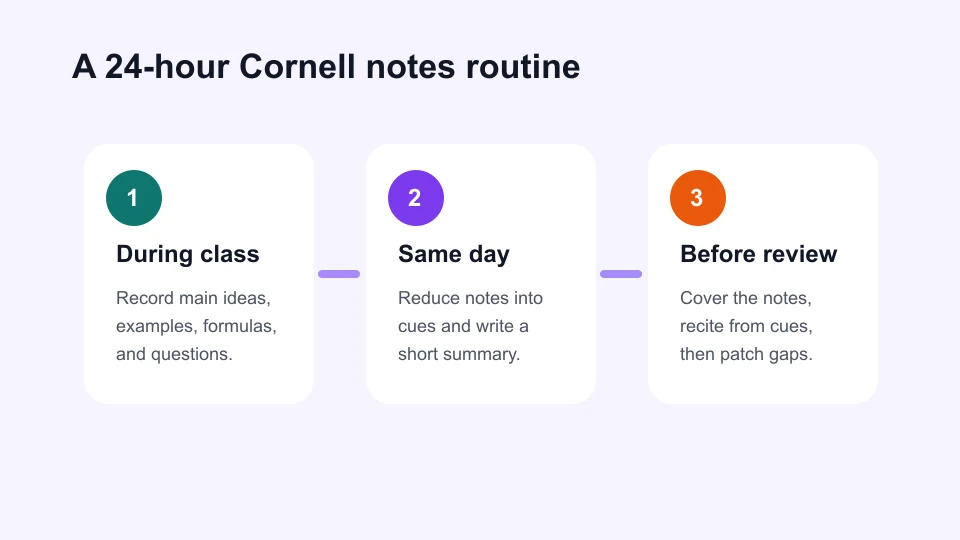
The easiest way to make Cornell notes work is to finish the page within 24 hours:
- During class: Record main ideas, examples, formulas, and questions. Do not chase every word.
- Within 10 minutes after class: Fill the cue column with questions. Good cues sound like exam prompts.
- Before the day ends: Write the summary section from memory, then check the notes area for gaps.
- Two days later: Cover the notes area and recite answers from the cue column.
- One week later: Review only the cues and summary first, then reopen the full notes if needed.
This routine protects you from the most common Cornell notes failure: beautiful pages that never become retrieval practice.
Common Mistakes to Avoid
- Writing cues during the lecture: Use class time for notes. Add cues after you understand the material.
- Copying slides word for word: Cornell notes work best when you compress and reorganize ideas.
- Skipping the summary: The summary is the part that reveals whether you can explain the topic.
- Making every cue a keyword: Use questions whenever possible because questions are easier to self-test.
- Waiting until exam week: The method depends on spaced review. Last-minute rewriting is not the same thing.
Conclusion
The best Cornell notes template is the one that makes review unavoidable. Word is excellent for printable pages, Google Docs is strong for shared notes, OneNote is practical for handwriting, and AFFiNE is strongest when you want a connected digital study system.
If you want to start quickly, use the AFFiNE Cornell Notes Template, create one page for your next lecture, and complete the cue and summary sections within 24 hours. That small habit is what turns the template into a learning system.
Frequently Asked Questions
What is the Cornell notes format?
The Cornell notes format divides a page into a cue column, a main notes area, and a summary section. The notes area captures information, the cue column turns it into retrieval prompts, and the summary section helps you explain the material in your own words.
Are Cornell notes actually better than regular notes?
They can be better when you use the full workflow. The advantage is not the page layout by itself; it is the cue-writing, reciting, reflecting, and reviewing that follow. If you only copy notes into boxes, the method loses most of its value.
Is there a Cornell notes template in OneNote?
OneNote may not provide a native Cornell template in every setup, but you can create one with lines, tables, or a reusable page. Make a left cue area, a larger notes area, and a bottom summary section, then save the page as your class template.
Is there a Cornell notes template on Google Docs?
Google Docs does not require a special add-on. Insert a table, set a narrow cue column on the left, keep the wider notes area on the right, and add a full-width summary row at the bottom. For group notes, share the document with comment access first.
What are the 5Rs of Cornell notes?
The 5Rs are Record, Reduce, Recite, Reflect, and Review. Record notes during learning, reduce them into cues, recite answers from memory, reflect on meaning and connections, and review on a spaced schedule.
Can I use Cornell notes for work meetings?
Yes. Use the notes area for decisions and context, the cue column for follow-up questions or action prompts, and the summary section for the meeting outcome. Cornell notes are especially useful for complex project reviews, research calls, and training sessions.
What is the fastest way to start?
Pick one template, use it for the next lecture or meeting, and do not customize it for more than five minutes. The first useful habit is completing the cue and summary sections the same day. After three or four sessions, adjust the layout to match your subject.