How to Make a Timeline Template in Google Docs (2026)
Updated June 26, 2026 with a rewritten people-first workflow, first-party timeline images, descriptive alt text, refreshed HowTo schema, and current Google Docs sharing/export guidance.
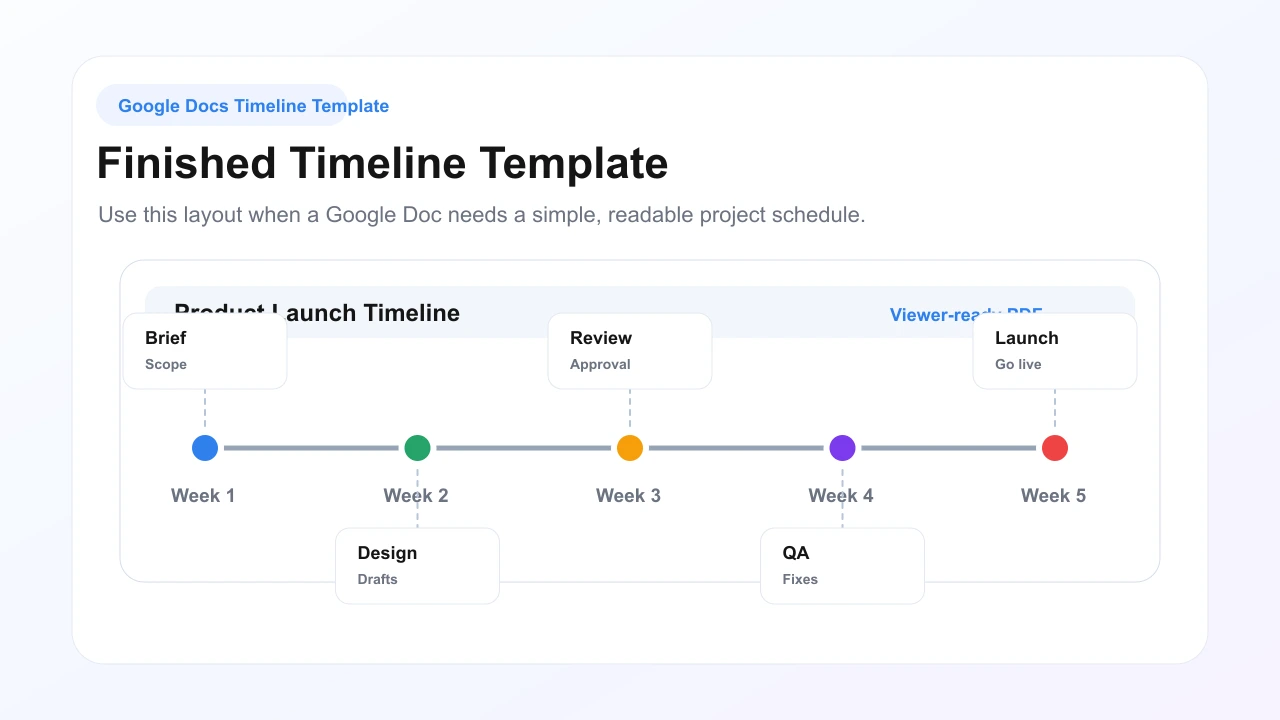
If you only need a small project schedule, you can make a timeline template in Google Docs with a landscape page, a table or drawing canvas, short milestone labels, and a clear sharing/export process. Google Docs is not a full Gantt chart tool, but it works well for simple 6-10 milestone plans that need to live inside a document.
Definition: A Google Docs timeline template is a reusable document layout that places dates, phases, milestones, and owners along a horizontal sequence. Most Docs timelines use a table, drawing line, or text boxes. They are best for lightweight stakeholder updates, not complex projects with many dependency tracks.
When Google Docs Works for a Timeline
Use Google Docs when the timeline is mainly a communication artifact. It is a good fit for launch briefs, school projects, client update docs, editorial calendars, and meeting handouts where the timeline needs context paragraphs around it.
Google Docs is less effective when the schedule needs automatic date shifts, critical path calculations, resource planning, workload reports, or more than about 30 milestones. At that point, the timeline usually needs a whiteboard, spreadsheet, Gantt chart, or project management tool.
What You Need Before You Start
Before opening Google Docs, collect five inputs:
- The start and end date.
- The 6-12 most important milestones.
- The owner for each milestone.
- Any approval gates or dependencies.
- The format you will share: live Google Doc, PDF, or DOCX.
Keeping the milestone list short matters. A Google Docs timeline is manually formatted, so every extra label increases maintenance work.
How to Create a Timeline Template in Google Docs
A simple Google Docs timeline takes about 15-20 minutes if your dates and milestones are ready. Use a table when alignment matters. Use Google Drawings when the timeline is more visual and has fewer text labels.
Step 1: Set Up the Document
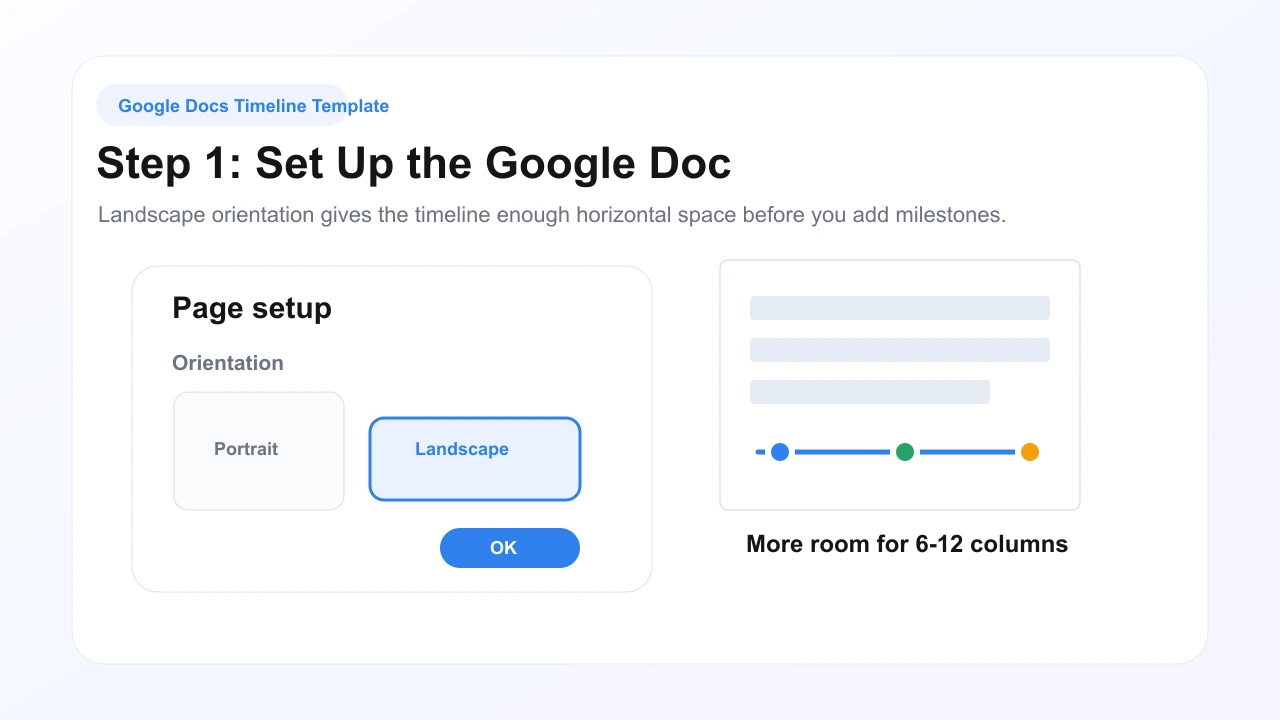
Open Google Docs, create a blank document, and name it something specific such as "Product Launch Timeline Template." Then choose File > Page setup and switch the page to landscape. Landscape orientation gives the timeline enough horizontal room for weekly or monthly columns.
For a one-page stakeholder version, keep default margins or narrow them slightly. For an internal working version, leave more vertical space under the timeline for notes, assumptions, and decisions.
Step 2: Build Headers and Columns
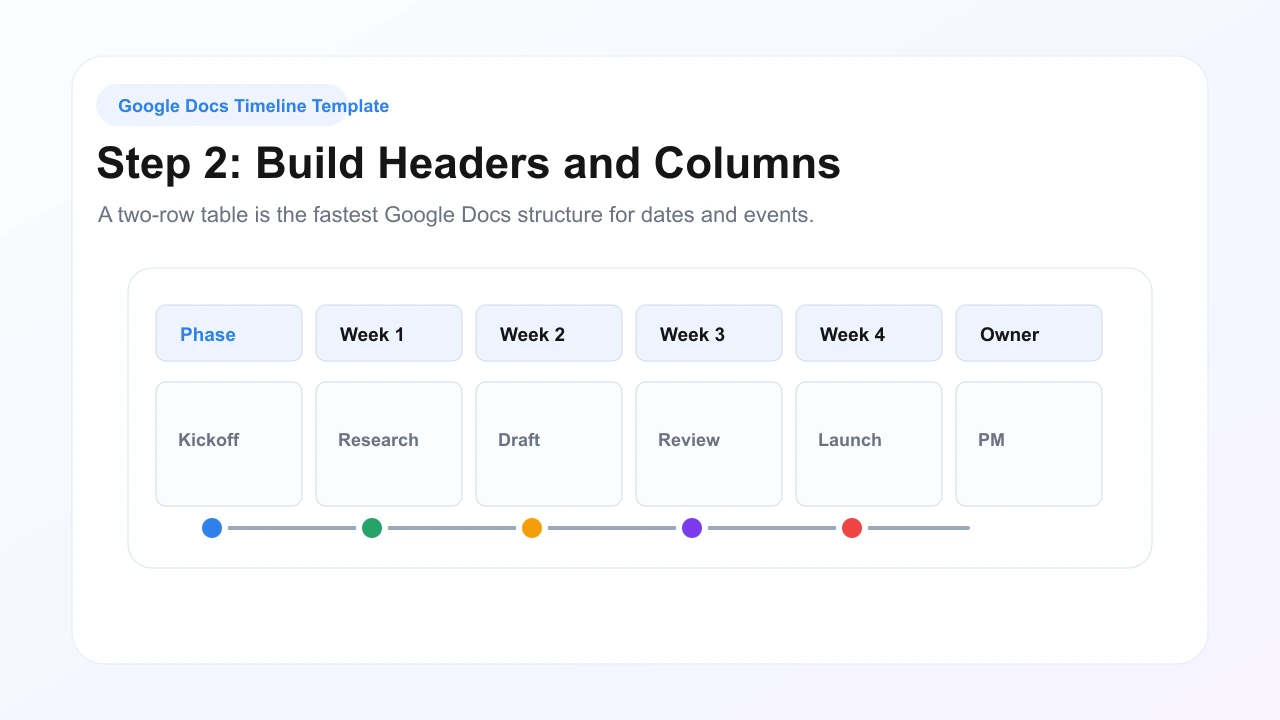
Insert a table with one header row and one event row. A 6-column table works for phases; an 8-12 column table works for weekly planning. Label the header row with time units such as Week 1, Week 2, Month 1, Sprint 1, or project phases.
For a cleaner look, remove heavy borders, use a light header background, and keep one date format across the whole table. Avoid mixing "June 3," "6/3," and "Week 1" unless each format has a clear purpose.
Step 3: Add Dates and Events
Place dates and events from left to right in chronological order. Start with fixed dates first: kickoff, delivery deadlines, approvals, launch, and retrospective. Then add flexible work events around them.
Good milestone labels are short enough to scan. Use labels like "Design review," "Beta launch," "Client approval," or "QA complete." If a milestone needs more explanation, put the detail in a note under the table instead of forcing it into the timeline cell.
Step 4: Format the Timeline
Use formatting to clarify meaning, not to decorate the page. Pick one accent color for the main path, one warning color for blockers, and one neutral color for supporting work. Keep labels around 10-12 pt so the timeline remains readable when exported as a PDF.
For a table timeline, use cell background colors and bold milestone names. For a drawing-based timeline, use a single horizontal line, circles for milestones, and short text boxes. Do not use more than three colors unless the project has a formal legend.
Step 5: Add Milestones, Owners, and Dependencies
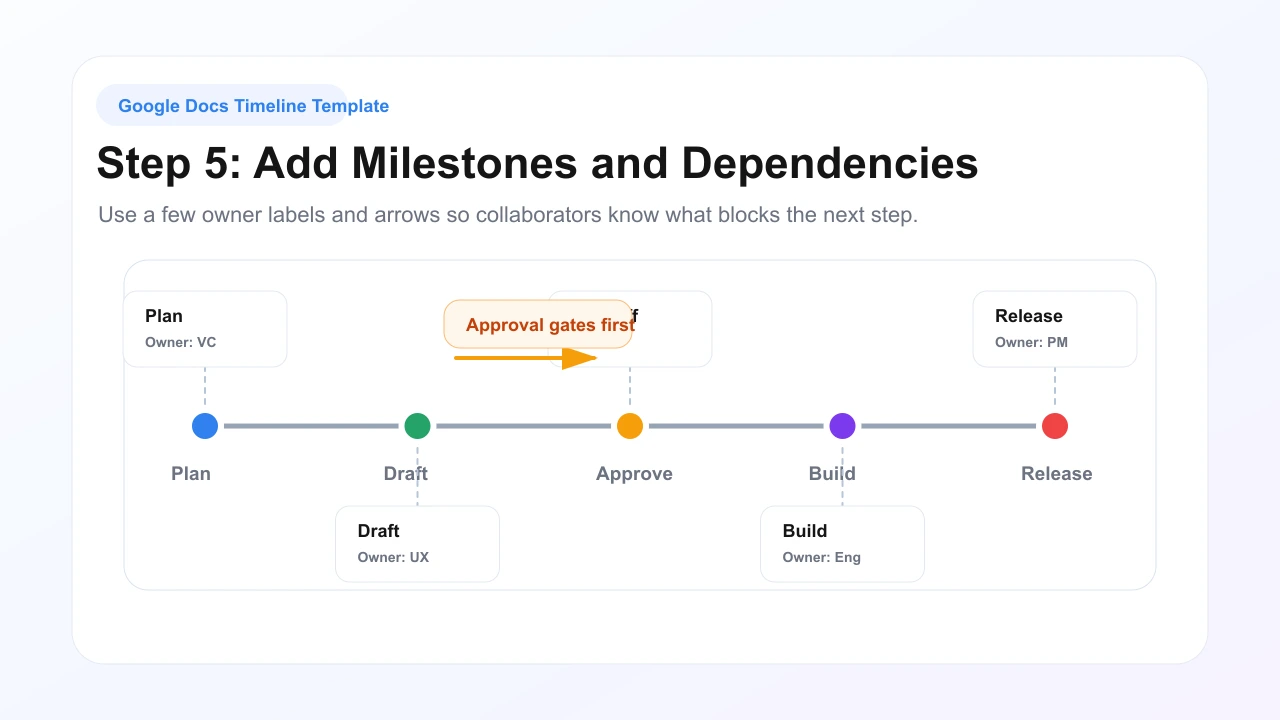
Turn the timeline from a date list into a delivery plan by adding owners and dependencies. Add owner initials only where ownership matters. Add arrows or notes only for dependencies that can block the next step.
For example, "Legal approval before launch copy" is useful because it explains sequence. "Marketing involved" is too vague. If the timeline needs many arrows, nested workstreams, or status changes every day, move it into AFFiNE, Smartsheet, ClickUp, or a dedicated Gantt tool.
Step 6: Share or Export the Timeline
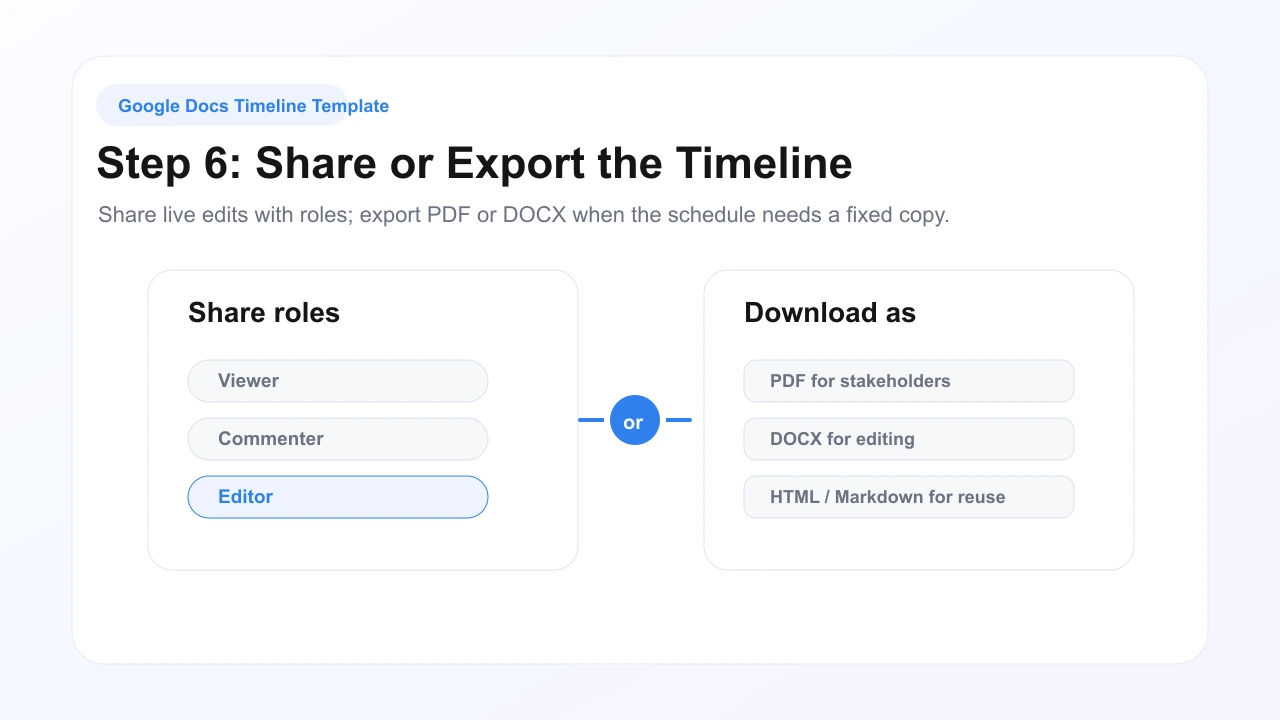
Use Google Docs sharing roles carefully. Google Docs Editors Help explains that shared files can use Viewer, Commenter, or Editor access. For timelines, start most collaborators as Commenter so they can flag schedule changes without accidentally moving dates.
When the timeline is final, export a fixed copy. The Google Workspace export format table lists Google Docs export formats including PDF, DOCX, ODT, RTF, TXT, HTML, EPUB, and Markdown. PDF is best for stakeholder sign-off. DOCX is better when someone needs to keep editing outside Google Docs.
Google Docs Timeline Template Checklist
Use this checklist before sharing the document:
| Check | Why It Matters |
|---|---|
| Landscape page setup | Prevents the timeline from feeling cramped. |
| 6-12 columns | Keeps the timeline readable in Docs and PDF exports. |
| One date format | Reduces confusion when collaborators scan deadlines. |
| Short milestone labels | Keeps each event visible without crowded text. |
| Owners only where needed | Adds accountability without visual noise. |
| PDF export for final versions | Preserves layout for stakeholders. |
Limitations of Google Docs Timelines
Google Docs can make a readable timeline, but it is still a document editor. It does not automatically recalculate schedules when one date changes, show workload by owner, or maintain dependency logic across many tasks.
Offline work also requires setup. Google's offline help says offline access must be enabled while online and requires a supported browser setup. If your project timeline must stay editable during travel or unreliable connectivity, use a tool with stronger offline planning support.
Best Alternatives to a Google Docs Timeline Template
If the timeline starts becoming a project system instead of a document, use a tool built for visual planning, task tracking, or diagramming. Pricing and free-plan limits change often, so use the official pricing pages before making a buying decision.
| Tool | Best For | Current Pricing Note | Timeline Strength |
|---|---|---|---|
| AFFiNE | Visual planning, connected notes, and whiteboard timelines | Free to start; see AFFiNE pricing for current plans | Infinite canvas, page mode, offline-first workspace, reusable planning templates |
| ClickUp | Timelines tied to tasks and team workflows | ClickUp lists a Free Forever plan and paid plans on its pricing page | Tasks, owners, comments, timeline/Gantt-style planning on supported plans |
| Smartsheet | Spreadsheet-style project timelines and reporting | Smartsheet publishes trial and paid plan details on its pricing page | Grid views, Gantt-style planning, dashboards, automation, reporting |
| Lucidchart | Polished timeline diagrams and process visuals | Lucidchart publishes free and paid plan details on its pricing page | Timeline templates, shape libraries, alignment guides, diagram sharing |
1. AFFiNE
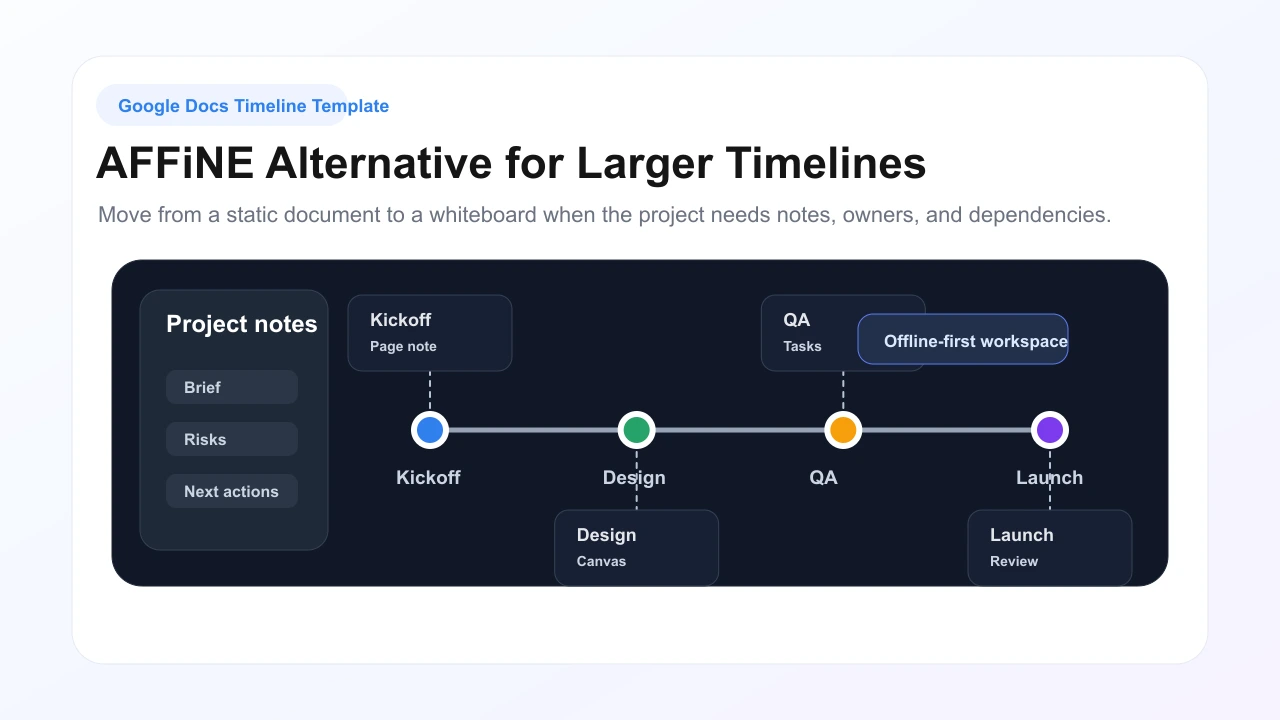
AFFiNE is the strongest alternative when your timeline needs both visual planning and written project context. You can map the schedule on a whiteboard, keep detailed notes beside it, and connect planning pages without forcing every decision into a single Google Doc table.
Use AFFiNE when:
- The timeline needs connected notes, not just dates.
- You want a whiteboard view for milestones and dependencies.
- You need an offline-first workspace for planning work.
- The project has enough context that a static document feels cramped.
2. ClickUp
ClickUp is a better fit when timeline work is tied to task ownership, team comments, and project status updates. Use it when the timeline is part of a broader task-management workflow rather than a one-page document for stakeholders.
3. Smartsheet
Smartsheet works well for teams that prefer spreadsheet-style planning but need stronger project controls than Google Docs. It is useful when timelines need reporting, dashboards, automation, and repeatable business workflows.
4. Lucidchart
Lucidchart is best when the timeline is also a diagram. It is easier than Google Docs for polished visuals, process maps, dependency diagrams, and timelines that need shape libraries or alignment guides.
Frequently Asked Questions
Does Google Docs have a built-in timeline feature?
No. Google Docs does not include a dedicated timeline or Gantt chart feature. You create a timeline manually with tables, drawings, lines, shapes, and text boxes. That is enough for lightweight schedules, but automatic dependencies and critical-path planning require a spreadsheet, whiteboard, or project management tool.
How long does it take to make a timeline in Google Docs?
A simple 6-10 milestone timeline usually takes 15-20 minutes if your dates and events are ready. A multi-track timeline with owners, dependencies, approvals, and repeated formatting can take 1-2 hours because each line, cell, and label is adjusted manually.
Can I make a Gantt chart in Google Docs?
Only in a simplified form. You can simulate a Gantt chart by using table cells, colored bars, or drawing shapes, but Google Docs will not automatically shift dependent tasks or calculate a critical path. For real Gantt planning, use Google Sheets, Smartsheet, ClickUp, or another project tool.
What file formats can I export a Google Docs timeline to?
Google Workspace documentation lists export formats for Google Docs including PDF, DOCX, ODT, RTF, TXT, HTML, EPUB, and Markdown. Use PDF when the timeline layout should not change. Use DOCX when another person needs to keep editing in a word processor.
What is the best free Google Docs timeline template alternative?
AFFiNE is the best free alternative when your timeline needs a visual canvas, connected notes, offline-first planning, and project context in the same workspace. Google Docs is fine for small static timelines, but AFFiNE scales better once you need owners, dependencies, and planning notes.
Conclusion
Google Docs is a practical place to build a timeline template when the goal is a clear document, not a full project management system. Keep the timeline short, use landscape orientation, add only the most important milestones, and export a PDF when the schedule is ready for stakeholders.
If the timeline becomes too crowded, move the planning work into a visual workspace. AFFiNE gives you a free starting point for whiteboard timelines, connected notes, and offline-first project planning without forcing every project detail into a document table.